
CASTING DIRECTOR: How do I navigate the Project Dashboard?

Edited

This article provides an overview of the main navigation bar and tools available when working inside a project. From editing project details to switching between list and grid views, this guide breaks down the essential features you need to manage your casting workflow efficiently.
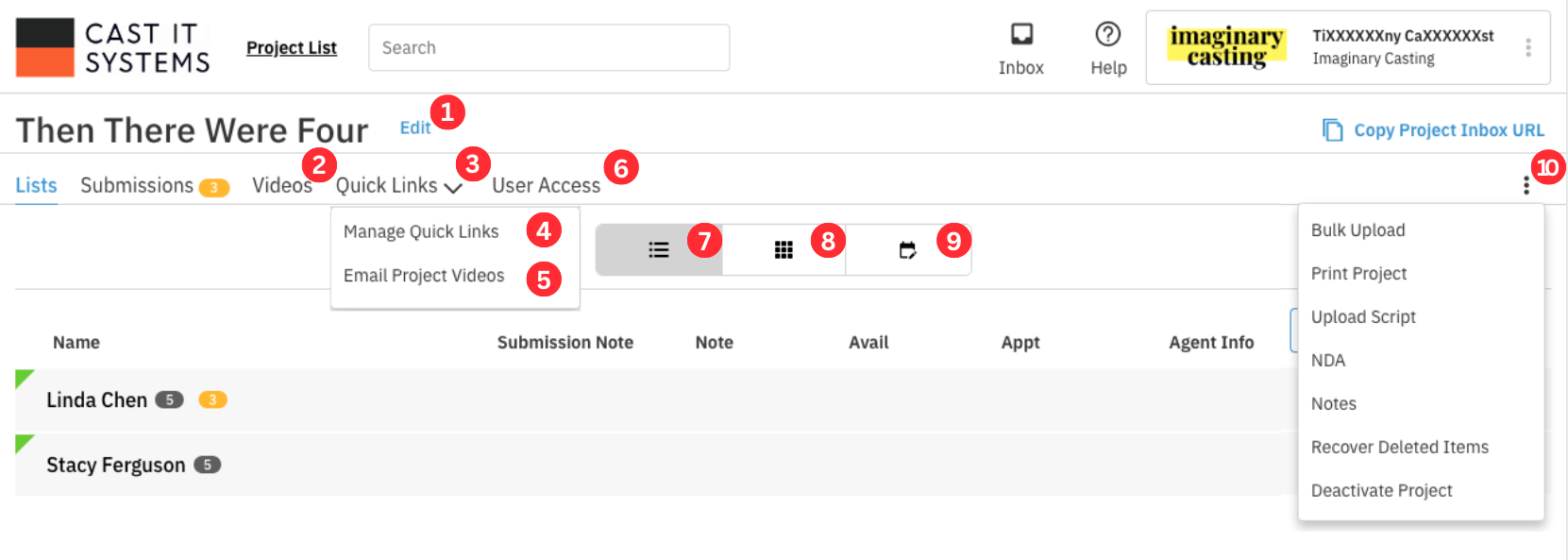
Cast It Systems dashboard for project "Then There Were Four" with 10 numbered markers highlighting navigation tabs, view toggles, and the actions dropdown menu.

  1. Edit Project

  2. Videos Page

  3. Quick Links

  4. Manage Quick Links

  5. Email Project Videos

  6. User Access

  7. List View

  8. Grid View

  9. Upload Date View

  10. Project Overflow Menu

  11. Tutorial


1.Edit Project 

This is where you can access the edit project information menu.
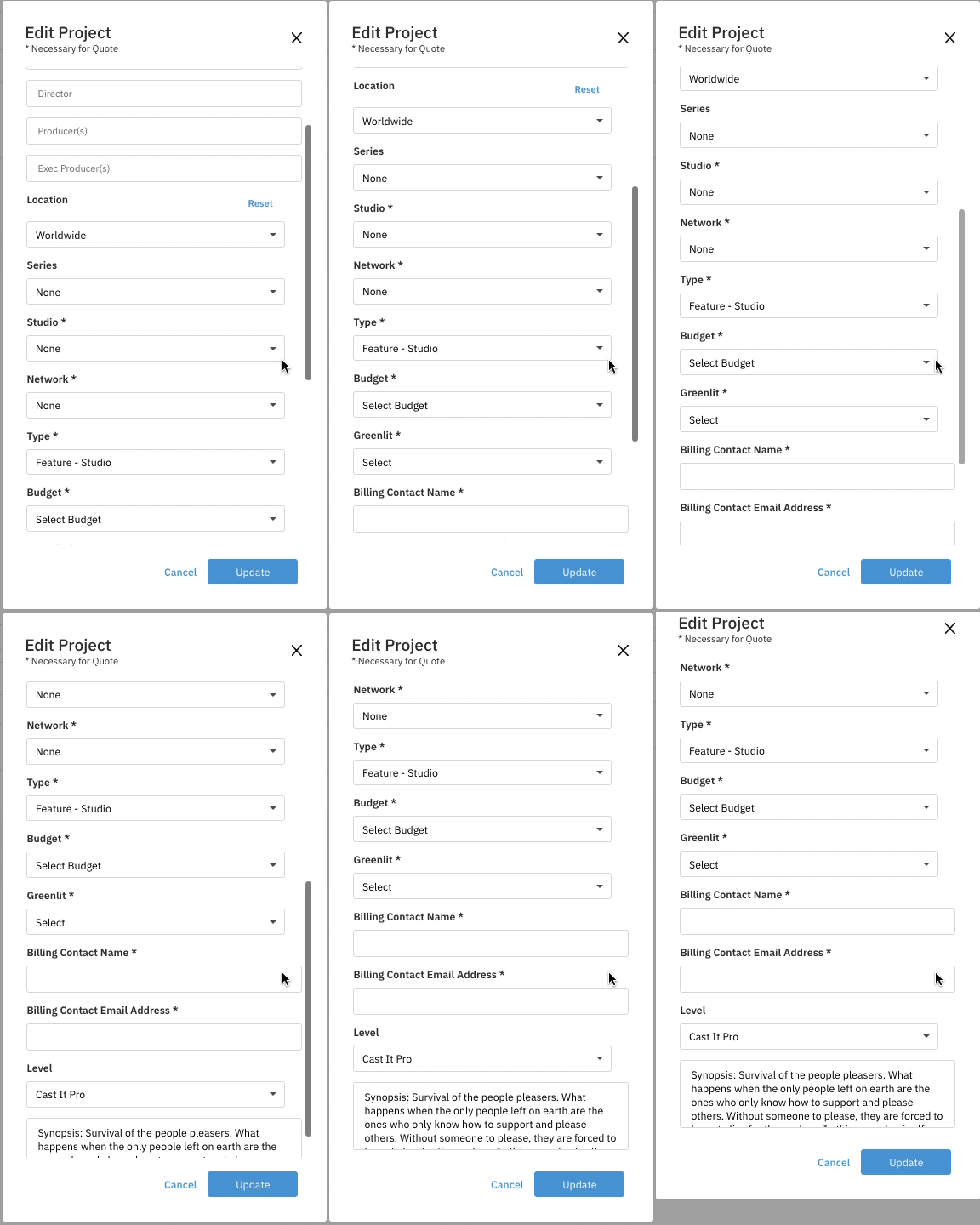
Based on the "Edit Project" form visible in the image, here is the suggested alt text:  Edit Project modal form with inputs for crew and dropdowns for Location, Series, Studio, Network, Type, and Budget, ending with an Update button.

2. Videos Page 

This will take you directly to the video playback page. It will default to the first talent in the first role. You can toggle between the roles from the dropdown on the left.
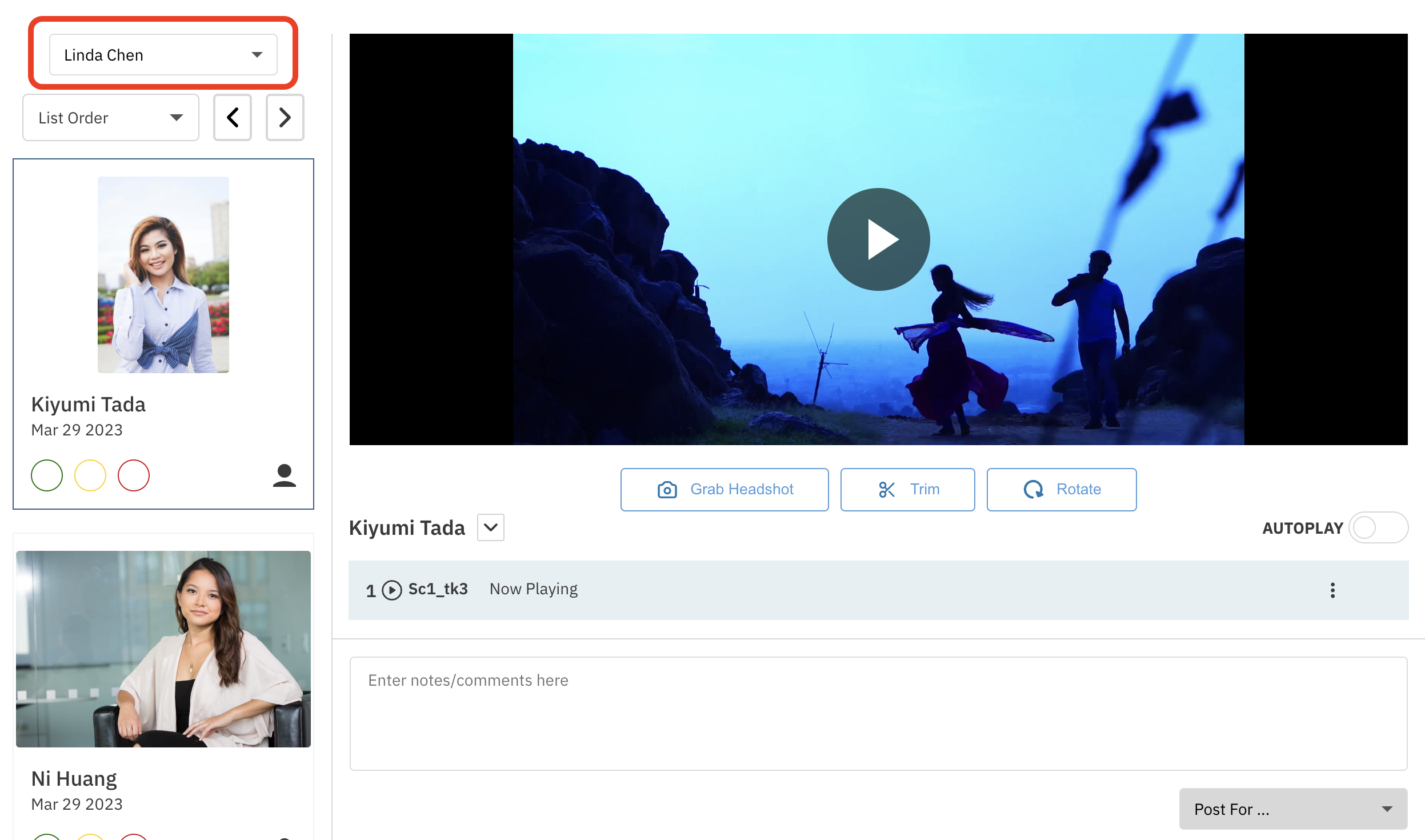
Casting submission review interface showing a paused video for actor Kiyumi Tada. A red box highlights the role selector dropdown displaying "Linda Chen" in the top left sidebar.

3. Quick Links 

This drop down menu includes Manage Quick Links and Email Project Videos.

4. Manage Quick Links 

Quickly navigate to manage your existing quick links on the advanced settings page.
 

5. Email Project Videos

Create a new project video link to share with clients!
 

6. User Access 

Add and edit users’ access to your project so that other users can contribute to the casting process. This is also where you can change access levels per role! Find out more about adding users here.
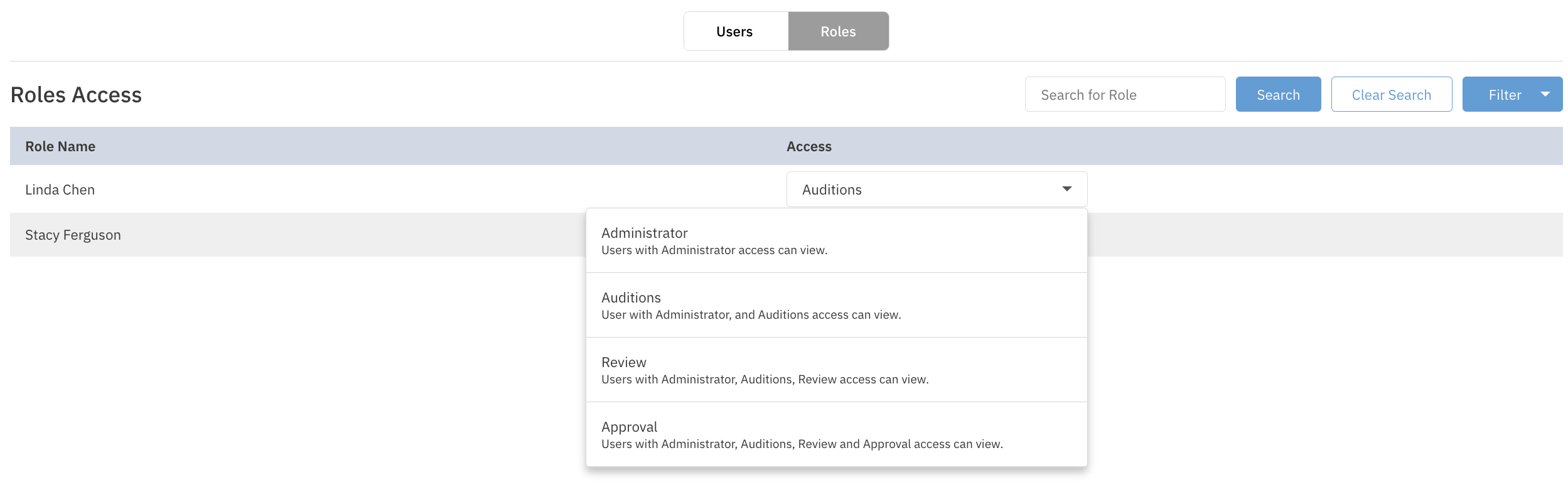
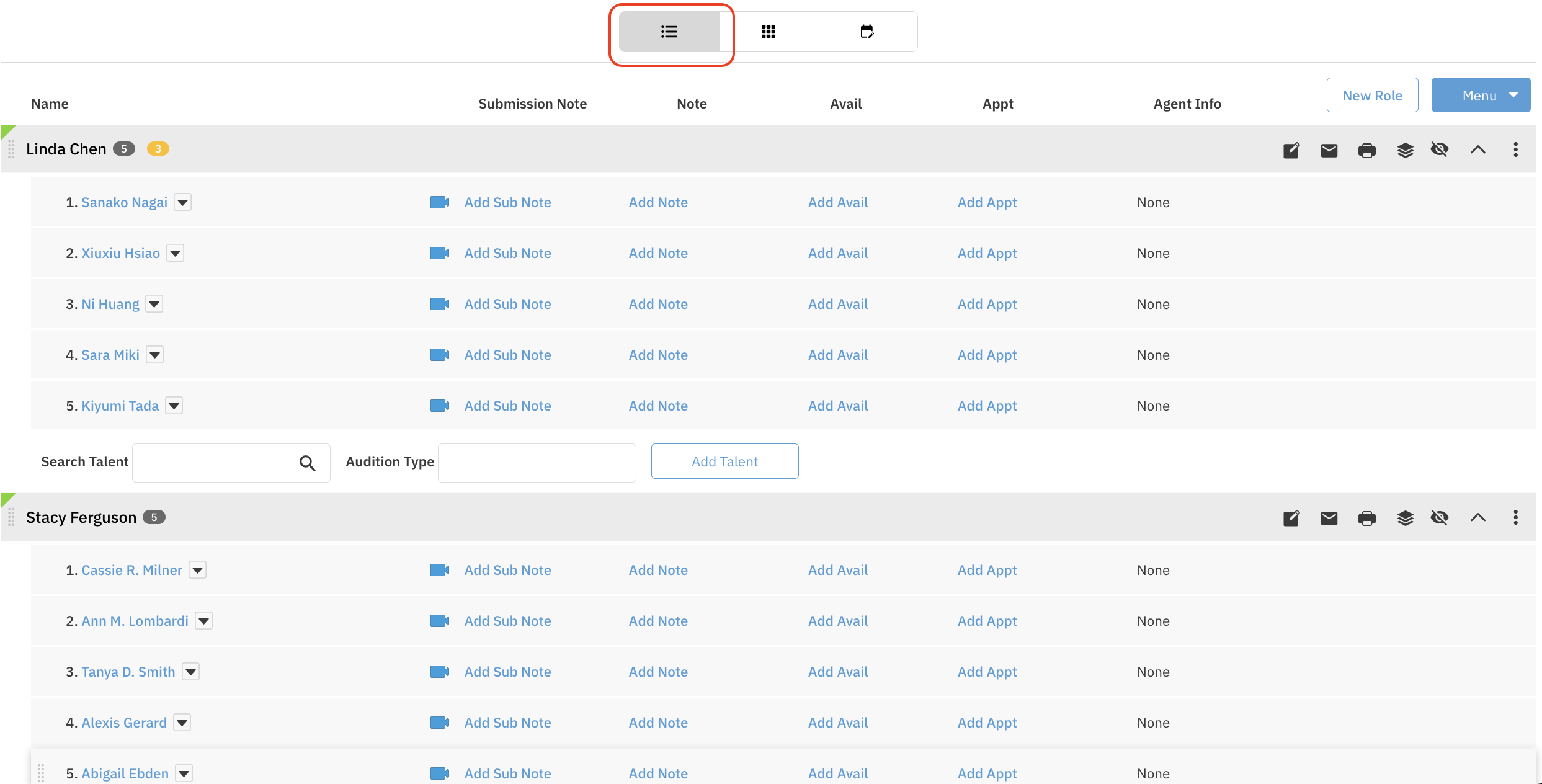
Casting dashboard showing actor lists for "Linda Chen" and "Stacy Ferguson," with a red box highlighting the selected list view icon at the top.

7. List View 

View your roles and talent in list format.
Video playback interface for actor "Kiyumi Tada" featuring a pause button over a scenic outdoor shot. A red box highlights the role selector dropdown "Linda Chen" in the sidebar.

8. Grid View 

 View your talent in grid format.
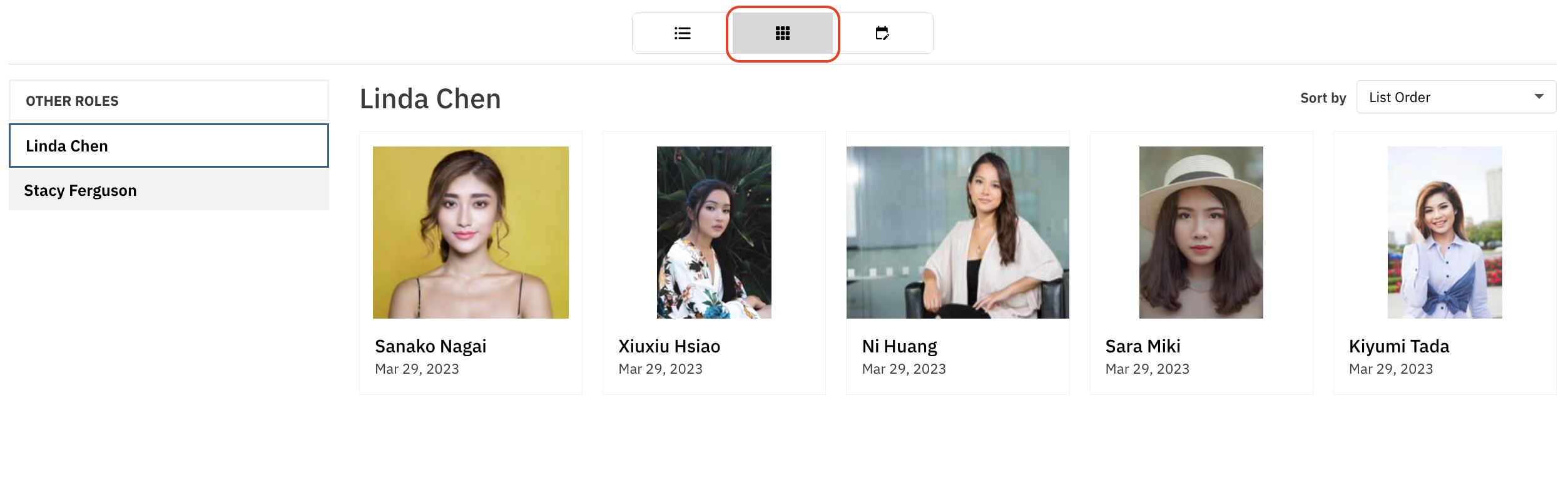
Casting dashboard in grid view showing headshots for actors like Sanako Nagai and Ni Huang under the role "Linda Chen," with the grid layout icon highlighted in red at the top.

9. Upload Date View 

View your talent by the date videos were uploaded. Talent with the most recent video upload date will be at the top.
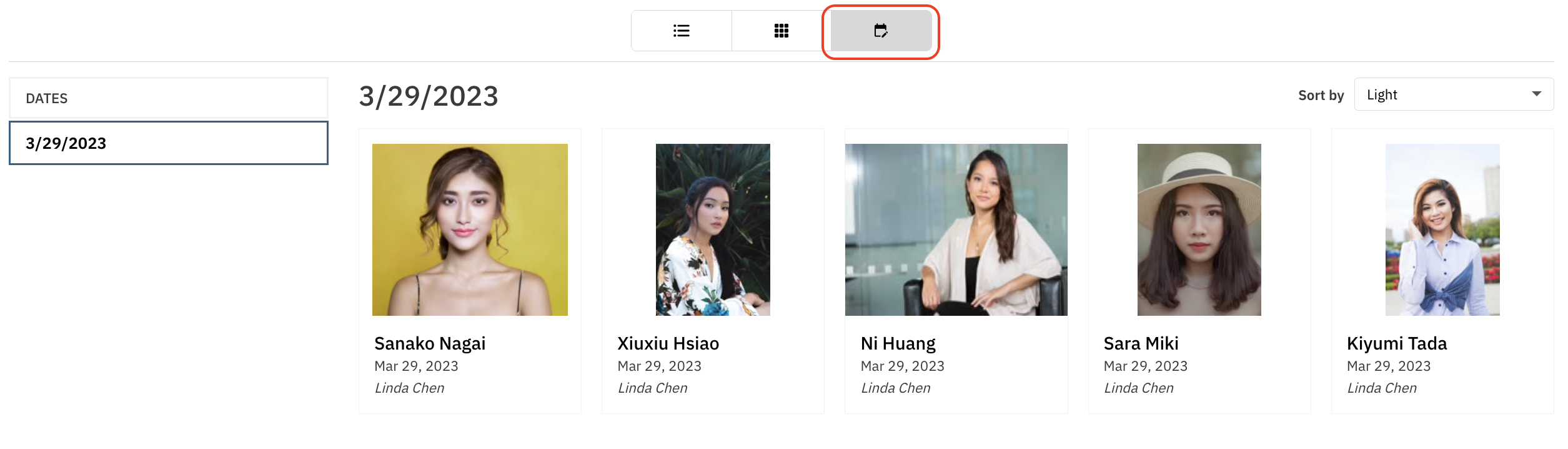
Casting dashboard in date view with "3/29/2023" selected in the sidebar. The main area displays headshots for actors viewed on that date, including Sanako Nagai and Ni Huang, with the date view icon highlighted in red at the top.

10. Project Overflow Menu 

Here you will find your additional menu options. This allows you to access this menu from any page in the project! Note* some options from the Blue Menu box have moved here!
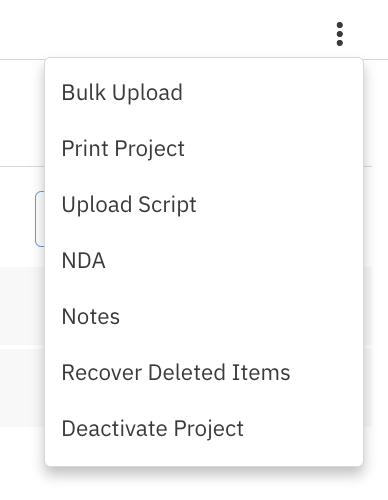
Dropdown menu displaying project options: Bulk Upload, Print Project, Upload Script, NDA, Notes, Recover Deleted Items, and Deactivate Project.

Tutorial

For a quick visual guide on navigating the site while working in a project, watch the video below: