
TALENT: How do I Update my Representation?
You are able to add or remove representation from your account at any time. This article explains how Talent can update their profile with their current Agent or Manager information to ensure the correct representatives are linked to their account.
Adding Representation
Login to your Cast It Talent account.
Navigate to the account navigation menu.
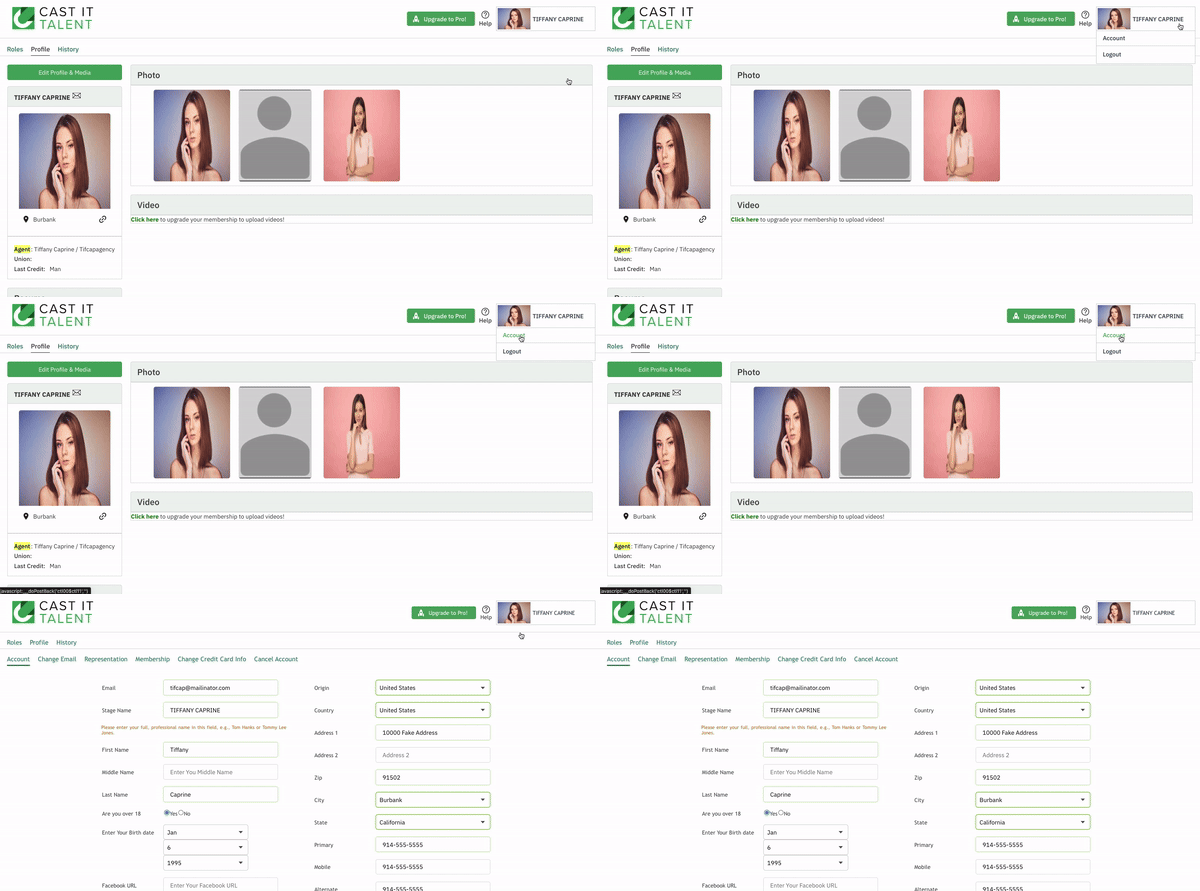
Click on Representation.

Click on Add Talent Rep.
Enter your Agent’s email address. The system will automatically populate your rep’s information.
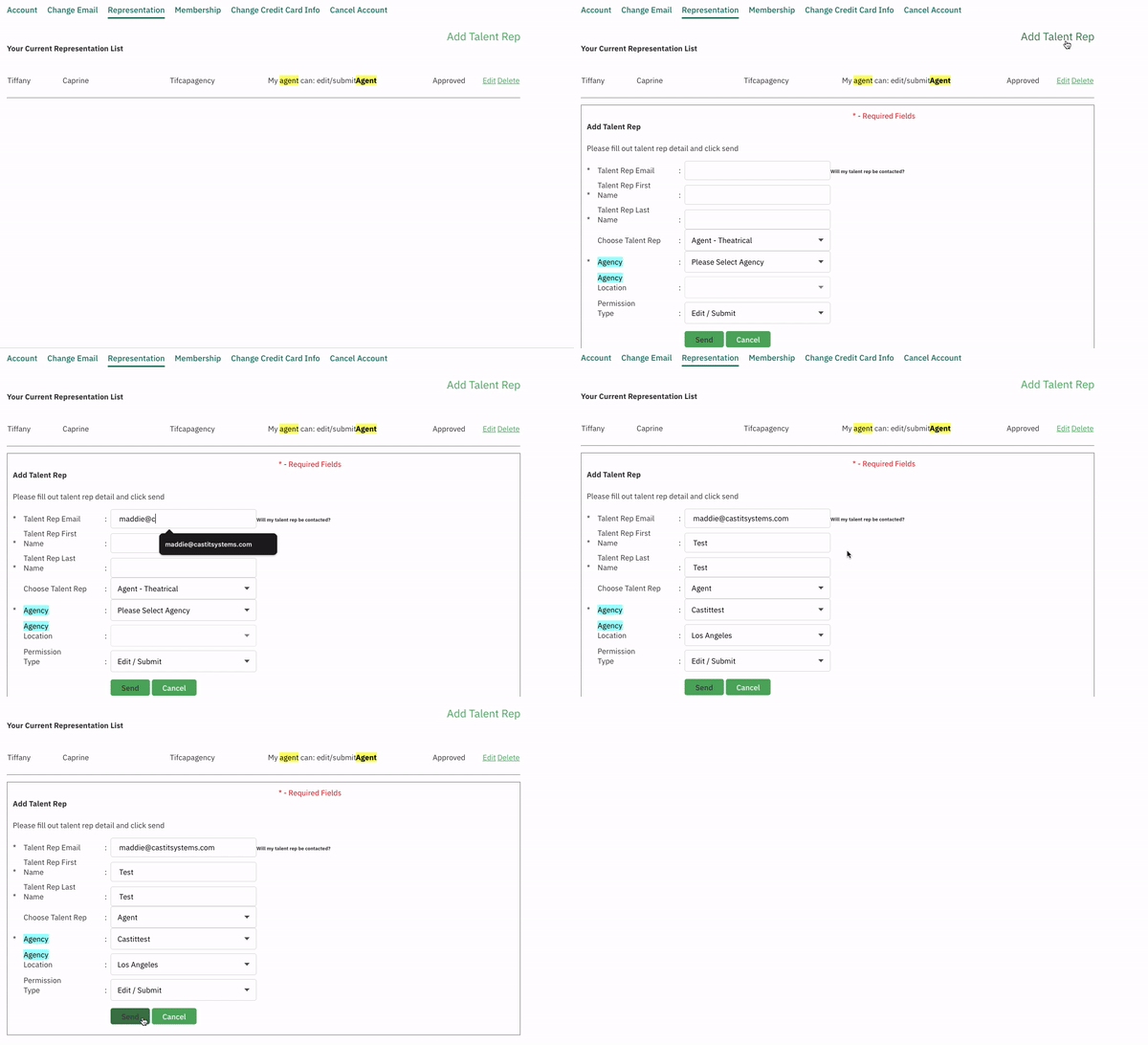
Click Send.
Your agent will receive an email to approve your request. If your representation has not approved your request, you can click resend to send your representation another email for approval. You can also Edit or Delete representation information at any time.
Once your representative selects the 'Confirm Client' link in the email, they will be able to upload media and submit you to projects.
Removing Representation
Login to your Cast It Talent account.
Navigate to the account navigation menu.
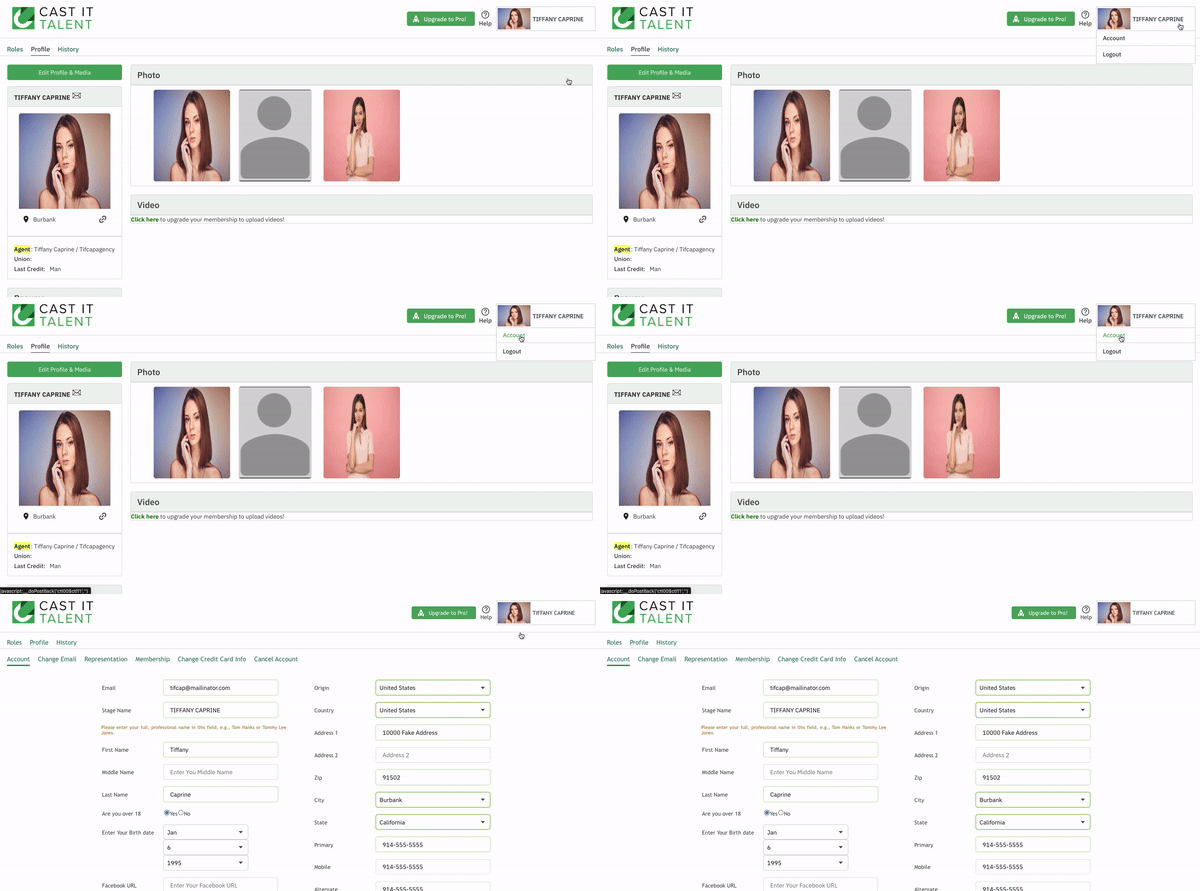
Click on Representation.

Locate the Representative which you would like to remove and click Delete.
Select Ok to confirm the removal of the Rep.
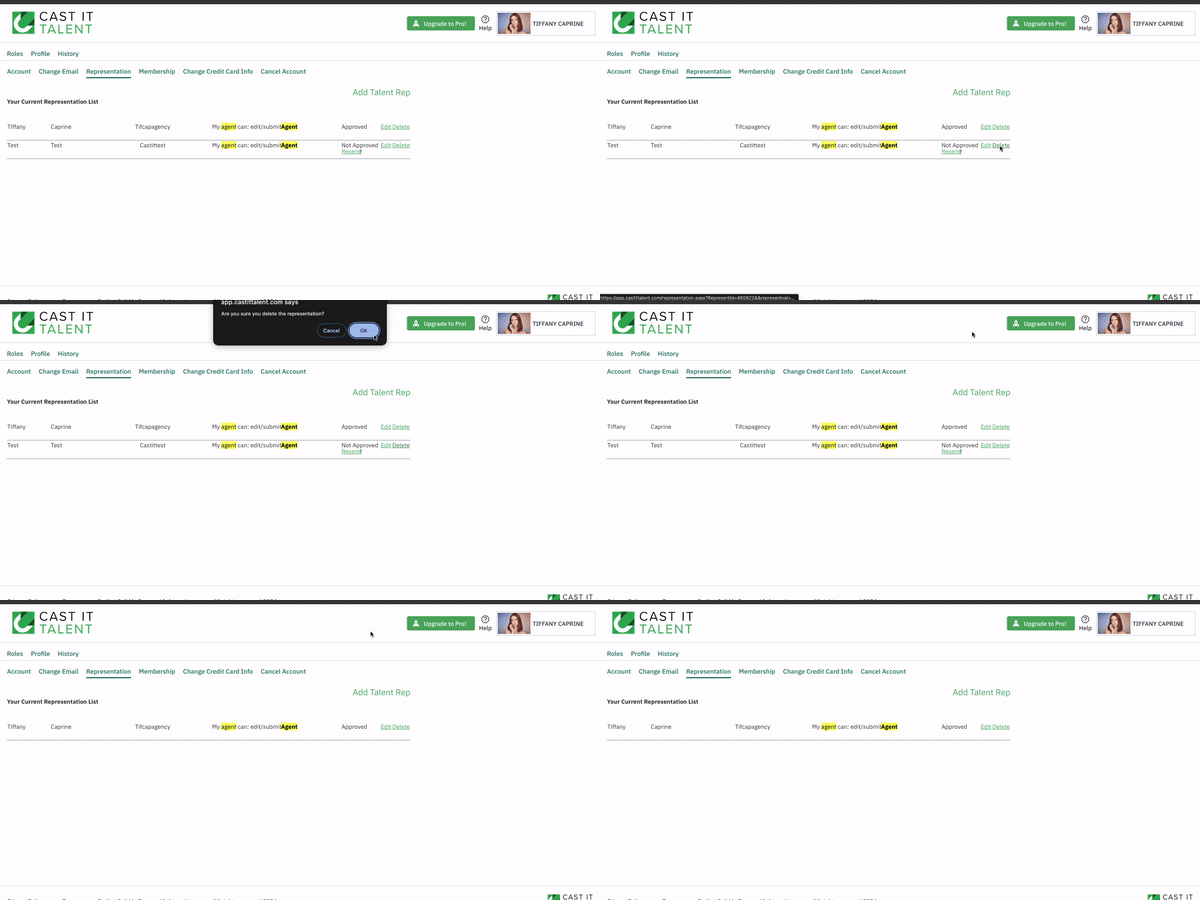
Once you have clicked Ok, you will be immediately removed from the Rep's roster.