TALENT: How do I troubleshoot issues when uploading a self-tape to a submission?
This guide provides troubleshooting steps for Talent to ensure your video file meets the necessary requirements for a successful submission.
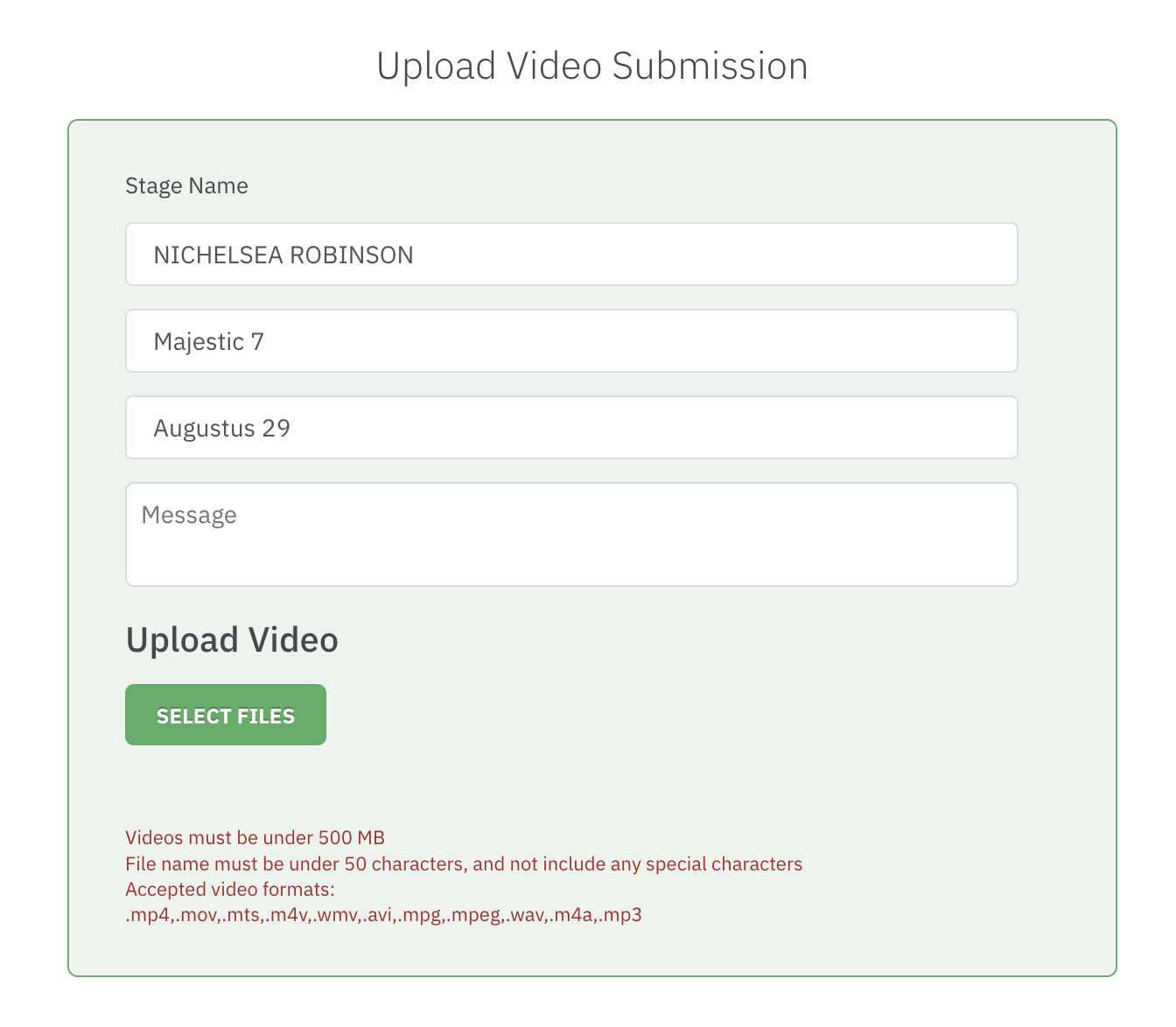
Is the file under 500 MB?
If your video file is larger than 500MB, you will need to resize it before attempting to upload. Smaller files upload faster and more reliably.
MAC
If you are using a MAC, you can easily resize your video using QuickTime:
Open the video in QuickTime.
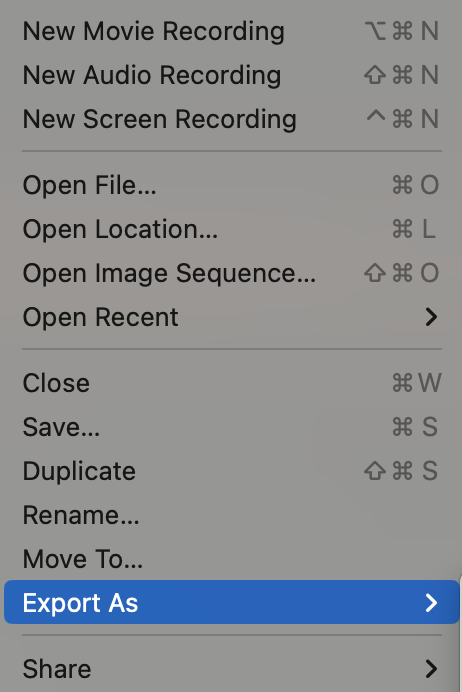
Go to the File menu.
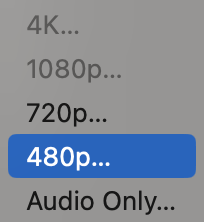
Scroll down to Export As and select 480p.
PC
If you are using a PC, we recommend using Clipchamp. This program is typically pre-installed on Windows 11 or can be downloaded from the Microsoft Store.
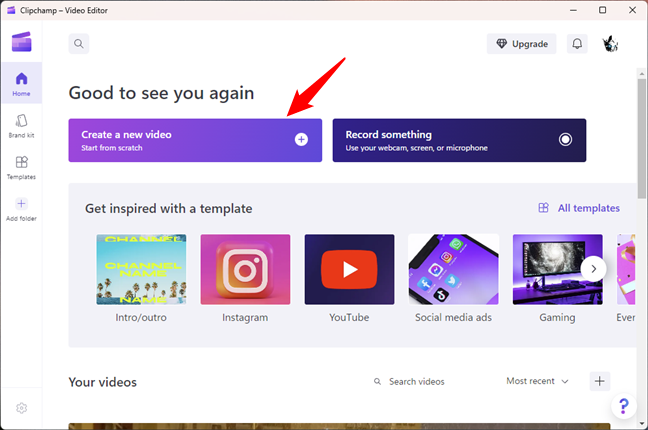
Launch Clipchamp - Video Editor and select the Create a new video button from the dashboard.
Drag and drop your video into the window or select IMPORT MEDIA.
Drag the video from your media library and drop it onto the storyboard at the bottom of the window.
Select Export at the top-right corner of the window.
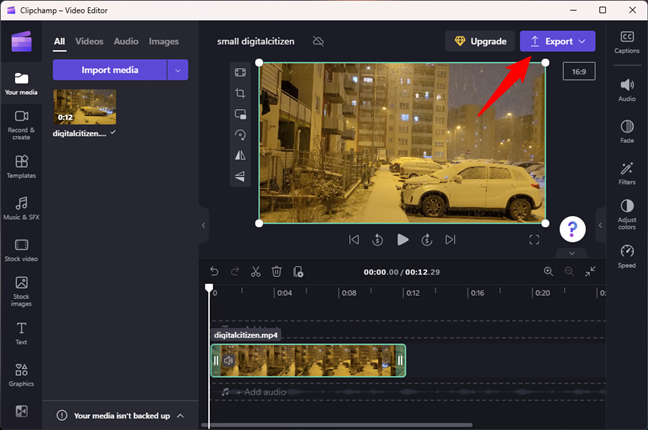
Set the resolution to 720p to save the smaller file.
Does the file name contain more than 50 characters or any special characters?
To ensure the system accepts your self-tape, the file name must be under 50 characters and should not include special characters (like symbols or extra punctuation).
Accepted format: Role_TalentsName_Description.mp4
Not accepted: Marvel-Studios_-Black-Panther-_2018_-_I_m-Not-Dead__-_-Movie-Clip-HD.mp3
Is the file saved in the proper video format?
We accept a variety of file types. Please ensure your file is saved as one of the following:
.mp4, .mov, .mts, .m4v, .wmv, .avi, .mpg, .mpeg, .wav, .m4a, .mp3
If your file is not in one of these formats, please use the resizing steps mentioned above to re-save your file in a compatible format.
Additional Helpful Tips
To ensure your submission is received, please keep these tips in mind:
Wait for completion: Always make sure the video upload progress bar has finished completely.
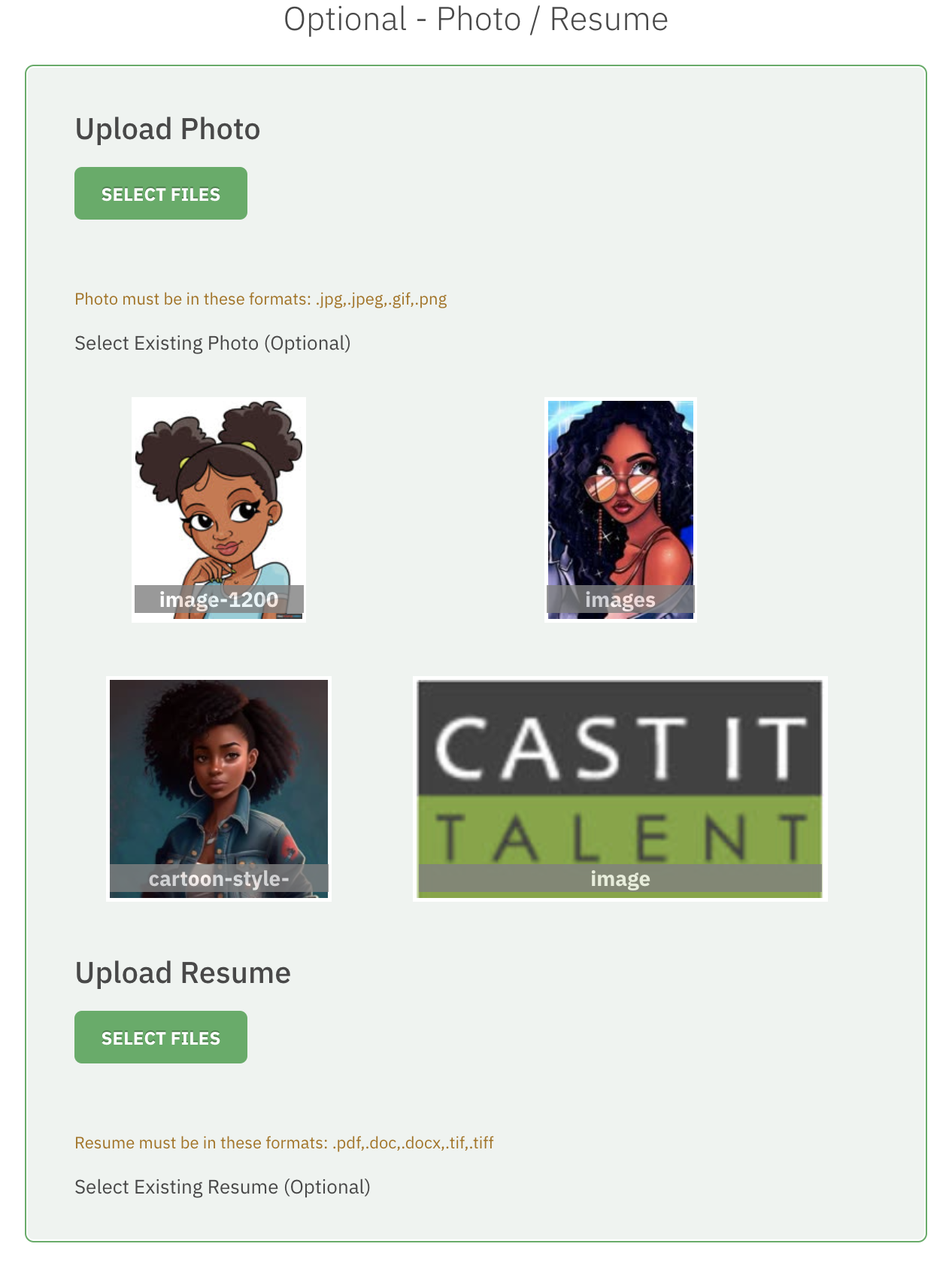
Select Photos: Choose the photos you would like to attach to the specific audition.
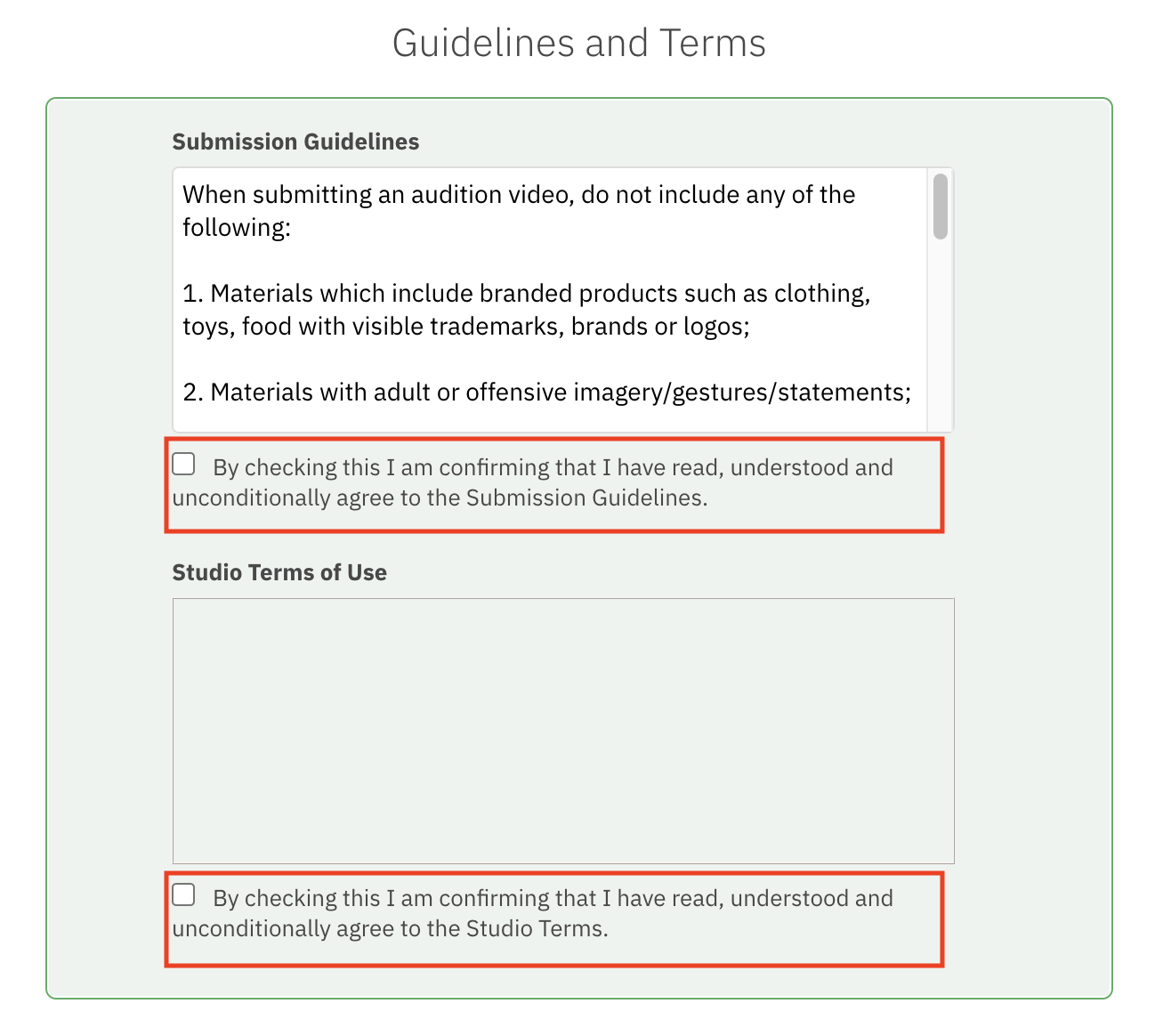
Agree to Terms: You must agree to the Guidelines and terms before the submit button becomes active.
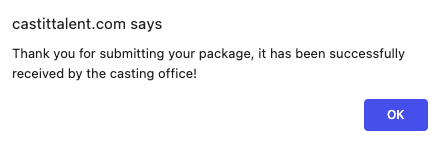
Confirmation: Once you click submit, look for a confirmation banner indicating the submission is complete. You can always verify this in your History tab.