TALENT: How Do I Manage My Media and Resume?
This article will help you navigate your account so you can keep your media organized and looking professional for casting directors, ensuring your profile is always up to date and ready for your next big role.
How do I upload photos, videos, or resumes?
If you have a Premium Membership, you can add various types of media to your profile to show off your range. This includes photos, video reels, and PDF resumes.
Login to your Cast It talent account.
Click on Profile.

Above your name on the left-hand side, select Edit Profile & Media.
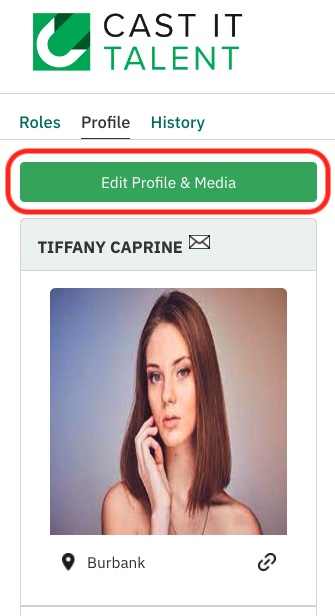
You will be redirected to the edit profile page.
Toggle to the MEDIA tab.

Click on Select Files.
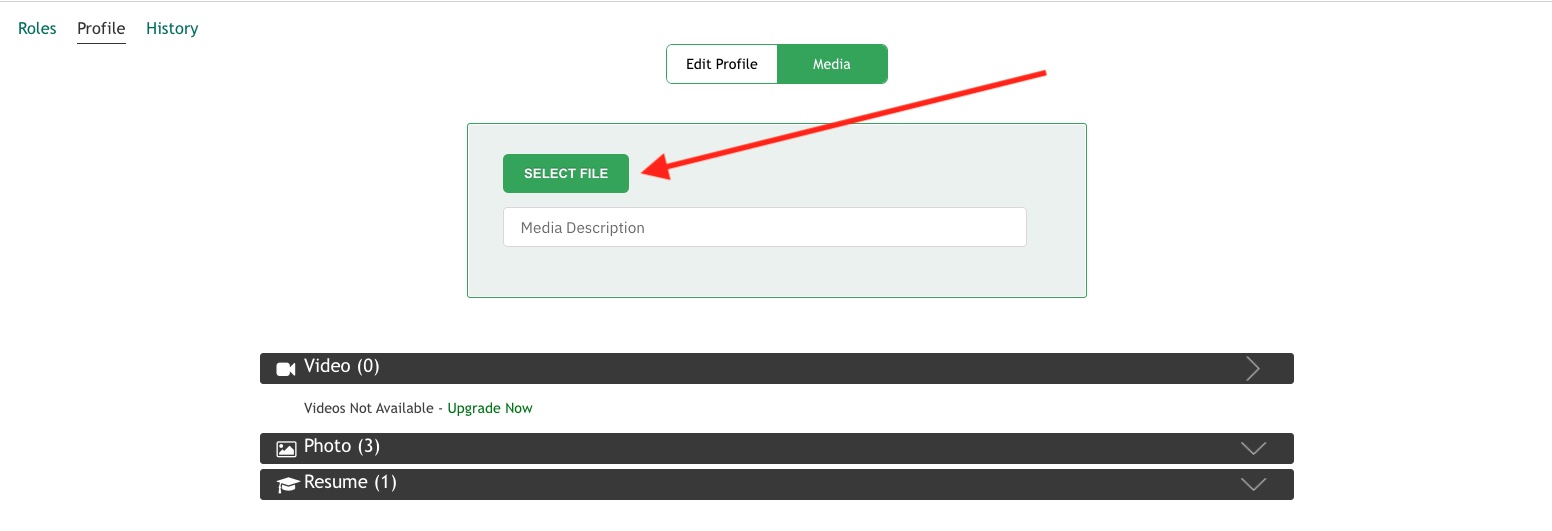
Please note: Videos must be under 520 MB. File names must be under 50 characters and should not include any special characters. Accepted video formats include: .mp4, .mov, .mts, .m4v, .wmv, .avi, .mpg, .mpeg, .wav, .m4a, and .mp3.
How do I delete photos, videos, or resumes?
If you need to clear out some old media to make room for new updates, follow these steps:
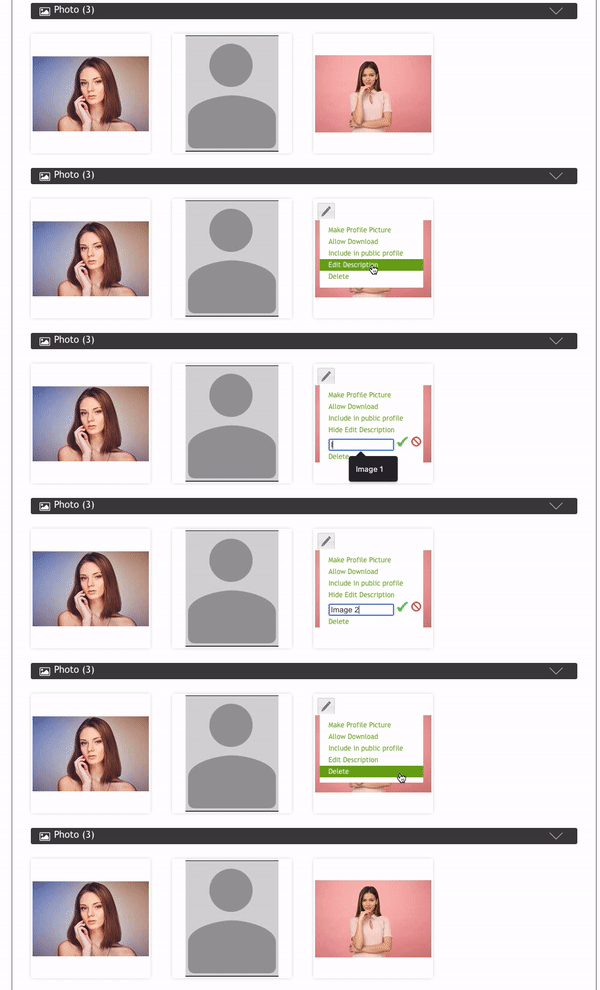
Click the drop-down menu for videos, photos, or resumes.
Hover over the specific media you are looking to delete.
Click Delete.
Select ok.

How do I rename my media files?
Keeping your files named clearly (like "Comedic Reel 2024" or "Commercial Headshot") helps keep things organized.
Click the drop-down menu for videos, photos, or resumes.
Hover over the media file you want to change.
Click Edit Description.
Click the check mark to Save.