TALENT REPRESENTATIVES: How do I Troubleshoot if I am unable to upload a self-tape to a submission?
This article provides Talent Representatives with a troubleshooting guide for uploading audition files, detailing three main requirements: file size, naming convention, and format.
Is the file under 520 MB?
If the file is larger than 520MB, you will need to resize the video.
MAC
If you have a MAC this is easy to do through QuickTime.
Open the video in QuickTime
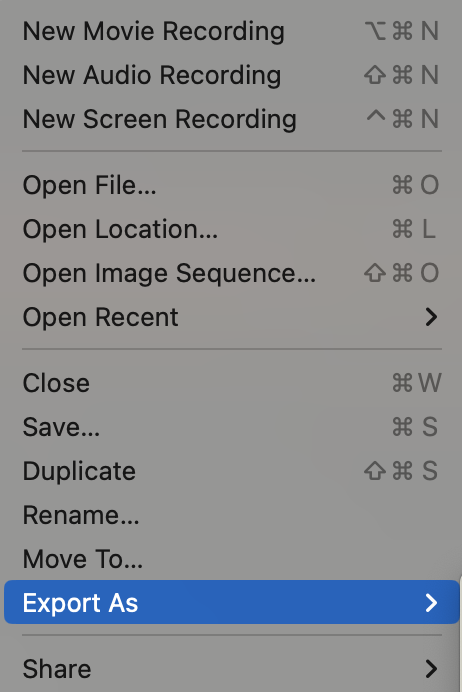
Go to File
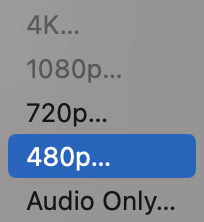
Scroll down to Export As and save as 480p
PC
If you have a PC use Clipchamp! Full article source can be found here: https://www.digitalcitizen.life/make-video-smaller-windows-10/
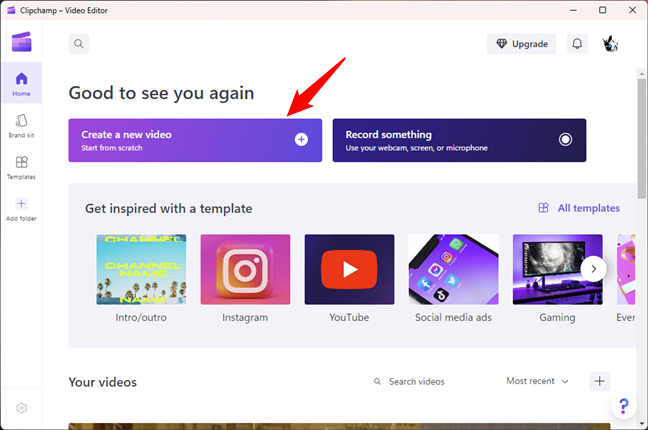
Launch Clipchamp - Video Editor and click or tap the “Create a new video” button from its dashboard. (This program is preinstalled on Windows 11 but can be downloaded and installed from the Microsoft Store.)
Drag and drop your video onto the Clipchamp - Video Editor window or select IMPORT MEDIA.
In Clipchamp - Video Editor, drag the video and drop it onto the storyboard located at the bottom of the window.
Select Export at the top-right corner of the Clipchamp - Video Editor window.
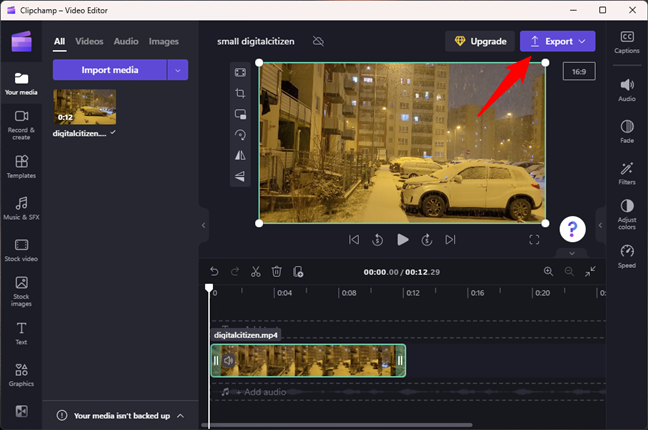
Set the resolution to 720p.
Does the file name contain more than 50 characters or any special characters?
In order to upload a self-tape, the file must be under 50 Characters and not include any special characters.
File name accepted:
Role_Talent’s name_Description(Slate or take 1)
File name not accepted:
Marvel-Studios_-Black-Panther-_2018_-_I_m-Not-Dead__-_-Movie-Clip-HD.mp3
Is the file saved in the proper video format?
Formats accepted are: .mp4, .mov, .mts, .m4v, .wmv, .avi, .mpg, .mpeg, .wav, .m4a, .mp3.
If it is not one of these, please use the steps in the "Is the file under 520 MB?" section to reformat your file.
Additional Helpful Tips
When uploading videos make sure the video upload has been completed.
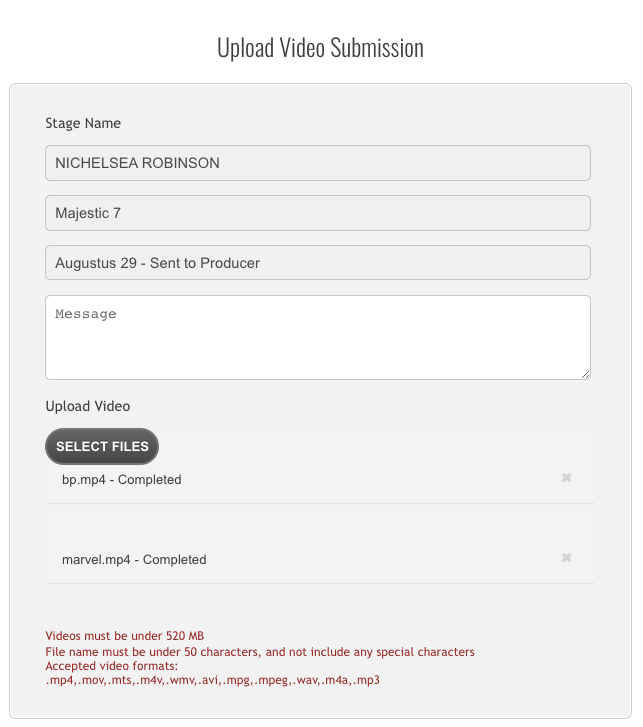
Select the photos you would like to attach to the audition.