TALENT REPRESENTATIVE: How do I update a talent's profile?
This article is for Talent Representatives who need to manage their roster's materials. It is important to keep your talent’s media up-to-date to make the submission process quick and efficient. While you cannot change a Stage Name directly on their profile, this guide answers how to update their media files and resumes.
Uploading New Media
Follow these steps to add new photos, videos, or resumes to a talent's profile.
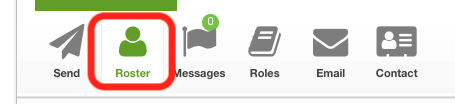
Navigate to your Roster tab.
Locate the talent profile that you wish to update.
Click on the Talent’s name to open their profile.
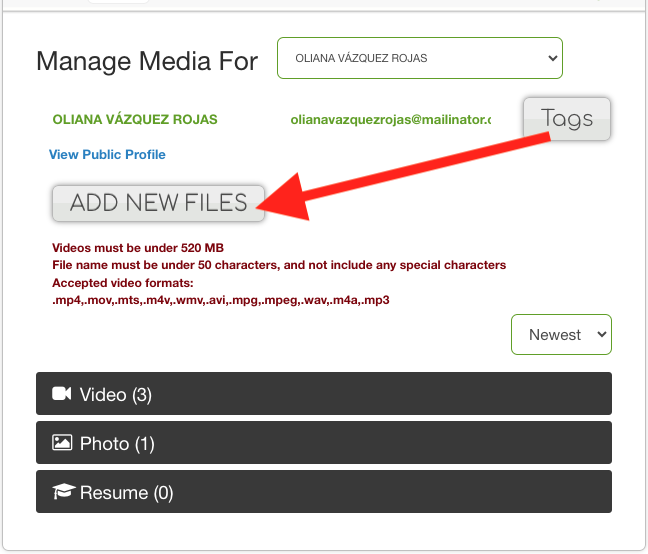
Click on Add New Files.
Select the files from your device that you wish to upload.
Please note: Videos must be under 520 MB. File names must be under 50 characters and not include any special characters. Accepted video formats: .mp4, .mov, .mts, .m4v, .wmv, .avi, .mpg, .mpeg, .wav, .m4a, .mp3The system will automatically sort the files:
Video and audio files go to the Videos section.
Image files go to the Photo section.
PDF files go to the Resume section.
The Talent’s profile is now updated with the new media!
Managing Existing Media
If you need to delete media, change download settings, or set a primary headshot, you can do so directly from the talent profile page.
Once on the profile, expand the media type section (Photos, Videos, or Resume) and locate the media you wish to update.
Click on the specific file you wish to change. A menu will appear.
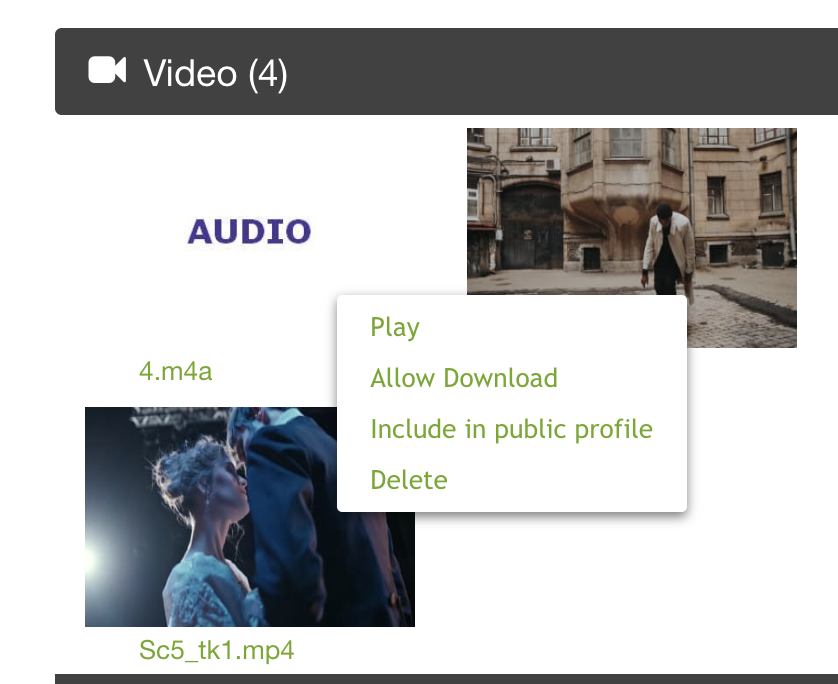
From the menu, select the action you wish to take (e.g., Delete, Download Settings).
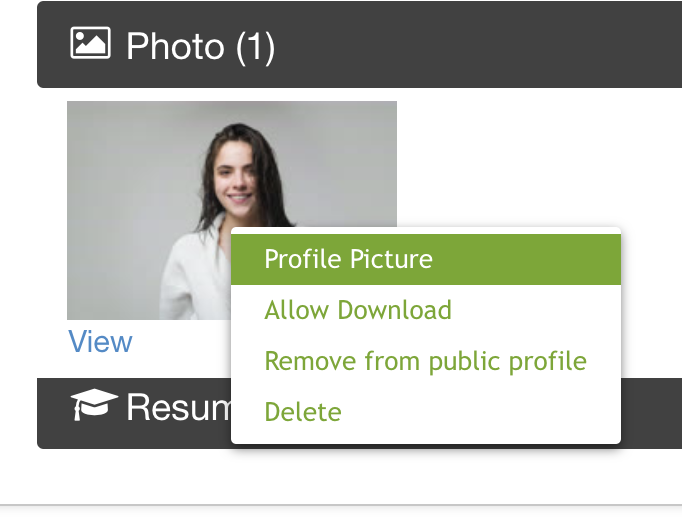
If you are selecting an image in the Photo section, you will see an option to set the photo as the primary profile headshot.