
CASTING DIRECTOR: How do I move a submission out of the Junk folder?
Edited
This guide explains how to easily bring a submission out of the Junk folder and back into your active workflow.
Important Note
You can only view the junk submissions folder if there is currently an active submission in the Submissions tab.
If there are no submissions, you will need to create a dummy submission to activate the submissions folder view.
Restoring a Submission
Click into the project you are working on.
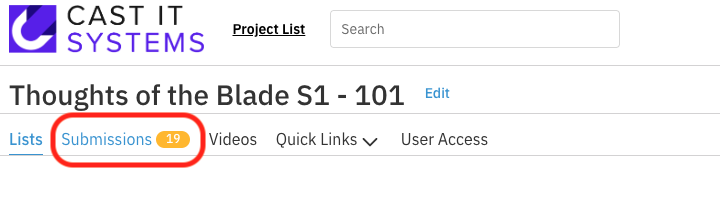
Select the Submissions tab.
Click on the Filter drop-down menu and select the Trash Icon.
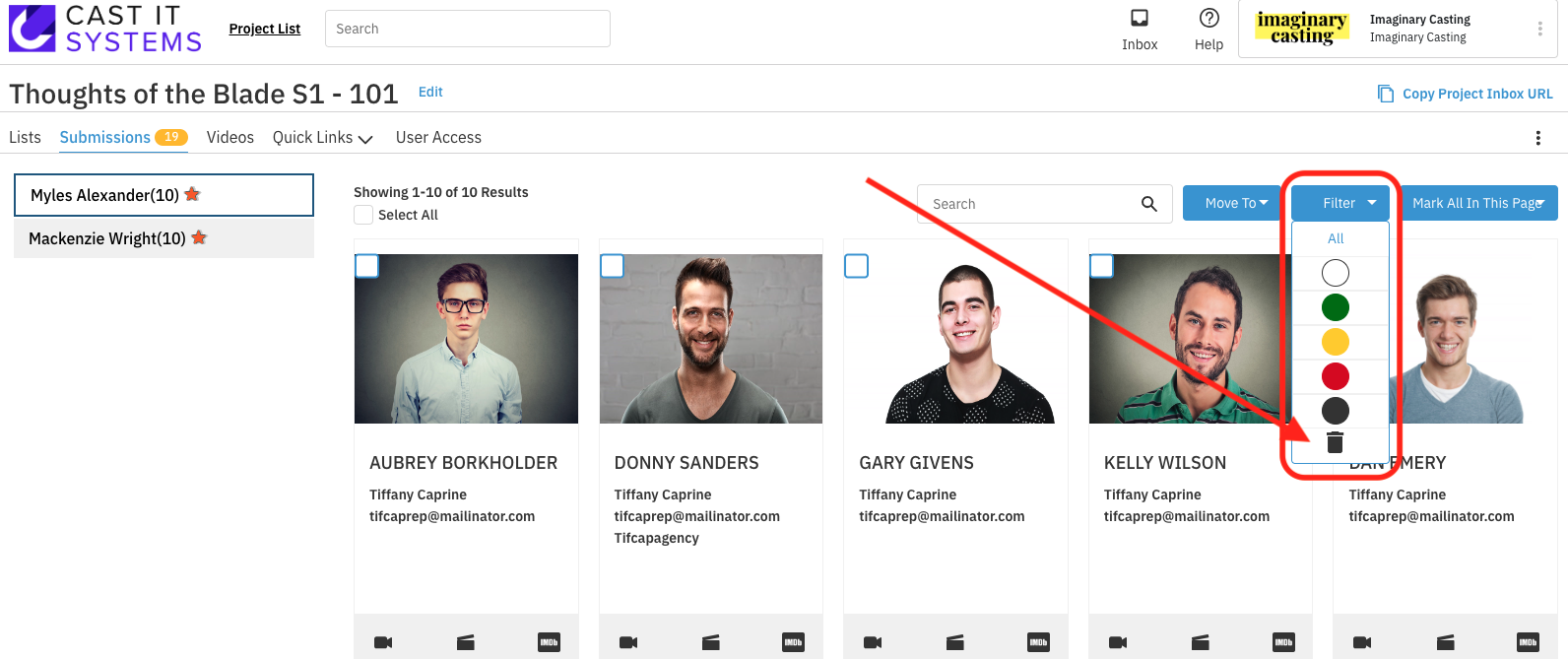
You are now in the Junk Submission Folder. Locate the talent you wish to restore.
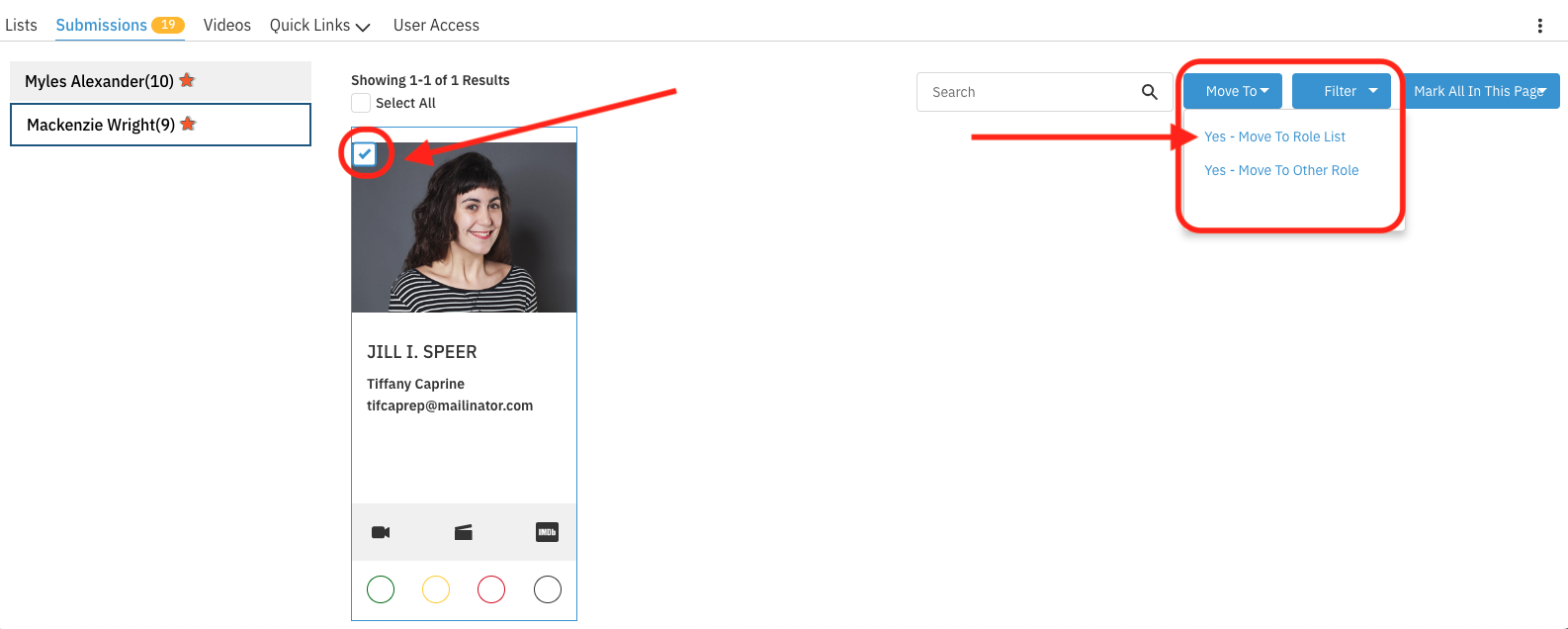
Click the check box in the top right corner of the talent's headshot to select them.
Select the Move to button to move this talent out of junk and into a specific role.
Submission
Junk
Folder