
CASTING DIRECTOR: How Do I Use Cast It Discover to Open My Roles to Submissions?
Cast It Discover is a handy feature within Cast It that lets you open your roles to a wider pool of talent on the Cast It Talent platform. Whether you are looking for new faces or want to simplify the submission process, this tool helps you get your project in front of the right people. Note that this feature was previously labeled as "Submissions" on the "Edit Role" menu.
How Do I Open a Role to Submissions?
To open your role up to submissions on Cast It Talent, click the down arrow on the right-hand side to expand the dropdown, then click the rocket icon.

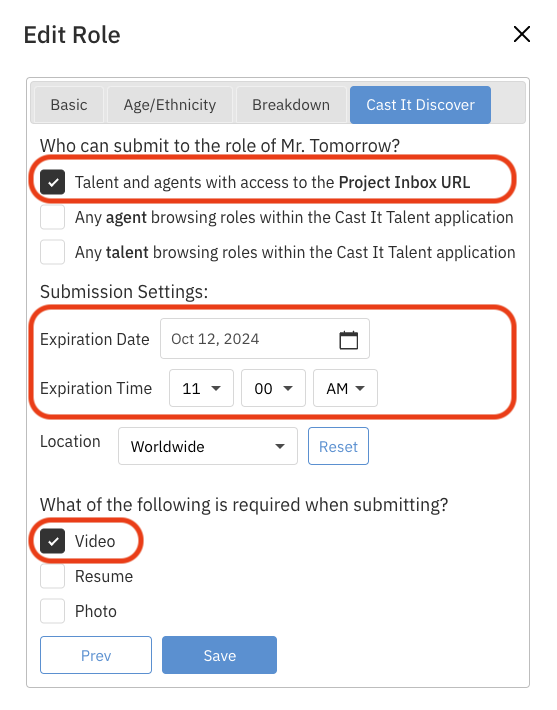
Mark the boxes for the following options:
"Talent and agents with access to the Project Inbox URL"
Note: You MUST set an expiration date and time to save these settings.
"What of the following is required when submitting?" — Video (at a minimum)
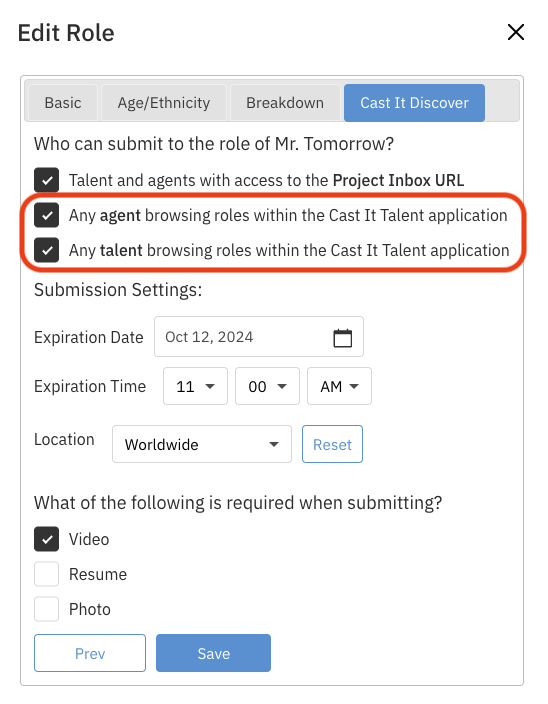
If you want agents to be able to submit WITHOUT sending them a specific link, you can check “Any agent browsing roles within the Cast It Talent application."
This will send the project to agents across the entire system. If you only want select agents to submit, do not mark this box.
If you want talent to be able to submit WITHOUT sending them a link, you can check "Talent Cast It Talent Accounts."
This sends the project to talent across the system. If you only want select talent to submit, do not mark this box.
Press Save. Your role is now active for submissions!
Note: Be sure to set a valid date and time to ensure everything saves properly.Repeat steps 1-5 to activate any other roles in the project.
How Can I Access and Share My Project URL?
Locate the project you are creating the submission link for and click into it.
Click on the Copy Project Inbox URL button.
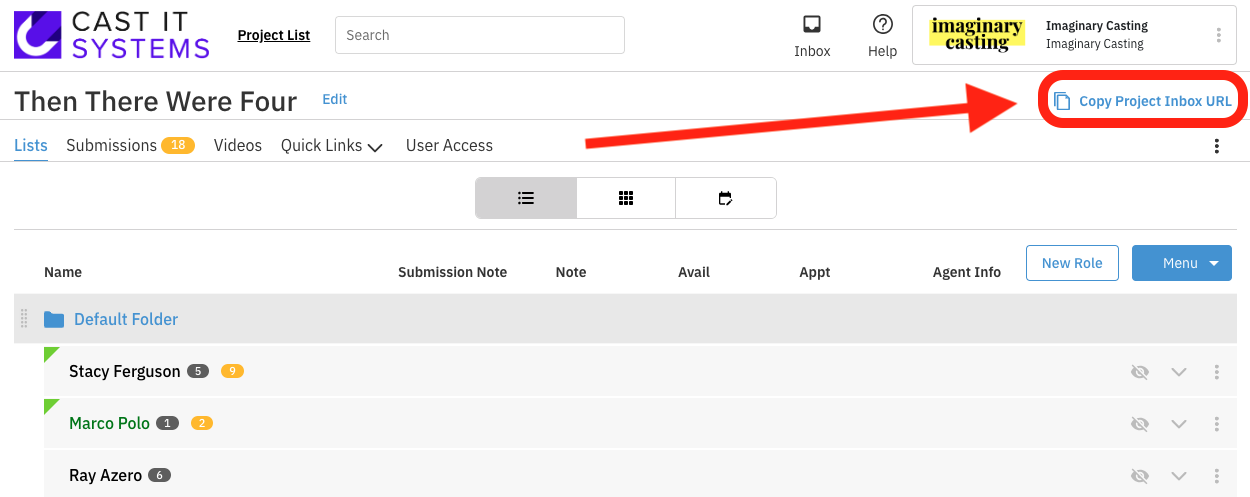
This automatically copies the URL to your clipboard. You can now paste this URL into an email and send it to anyone you would like to have submit for your project.
Those who click on your URL will be redirected to a submission page. The page will look similar to this:
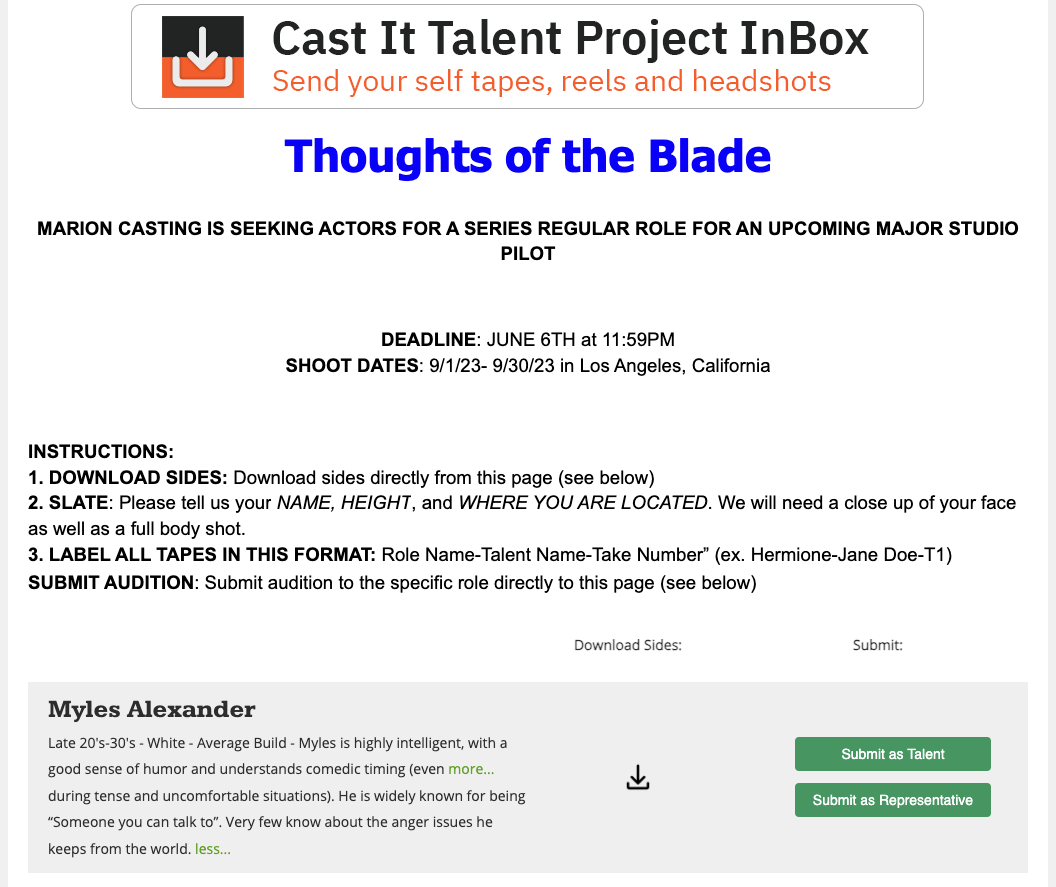
If you would like to customize the image or language on this page, please contact our support team by filling out a request form here.