CASTING DIRECTOR: How do I fix audio sync issues in FastCapture?
This article is for Casting Directors using FastCapture. If your audio falls out of sync with your video during a session, you can use the built-in function within FastCapture to adjust these issues.
Note: These adjustments can only be done within FastCapture, and not on the Cast It Systems website or any Presentation Links.
Adjusting Audio Sync
Once you have captured your audition tape(s), you must first finalize your group. Click on the green button at the top right corner of the screen labeled Finalize Group.
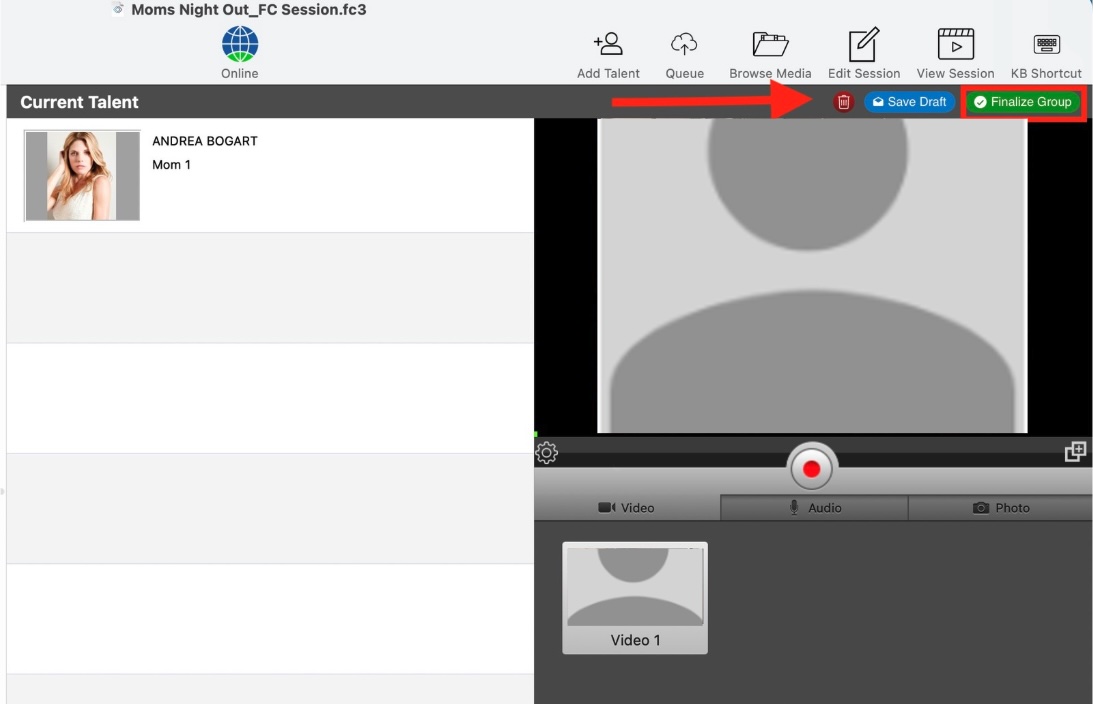
After finalizing your group, head to the Queue page found at the top right corner of your screen.
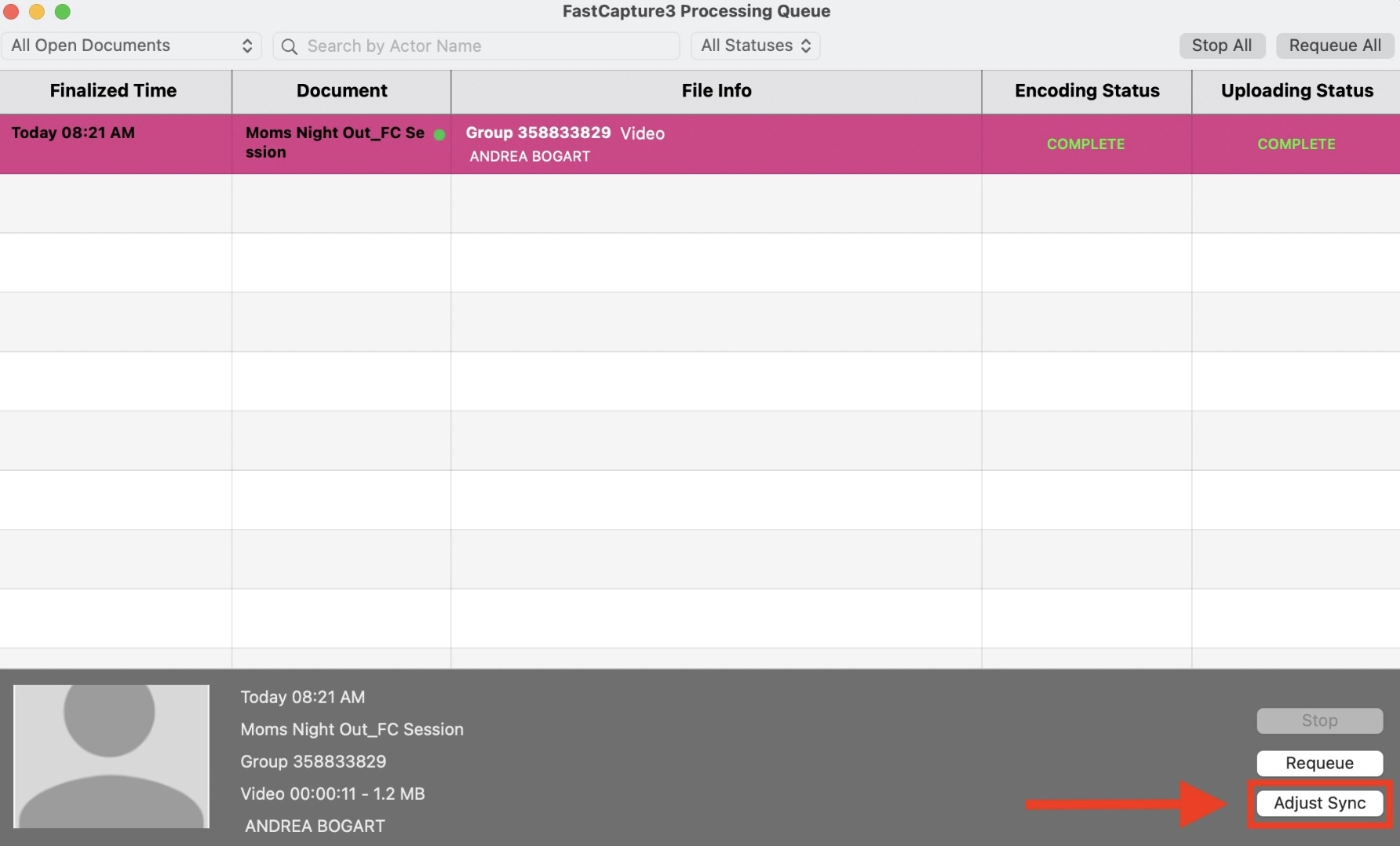
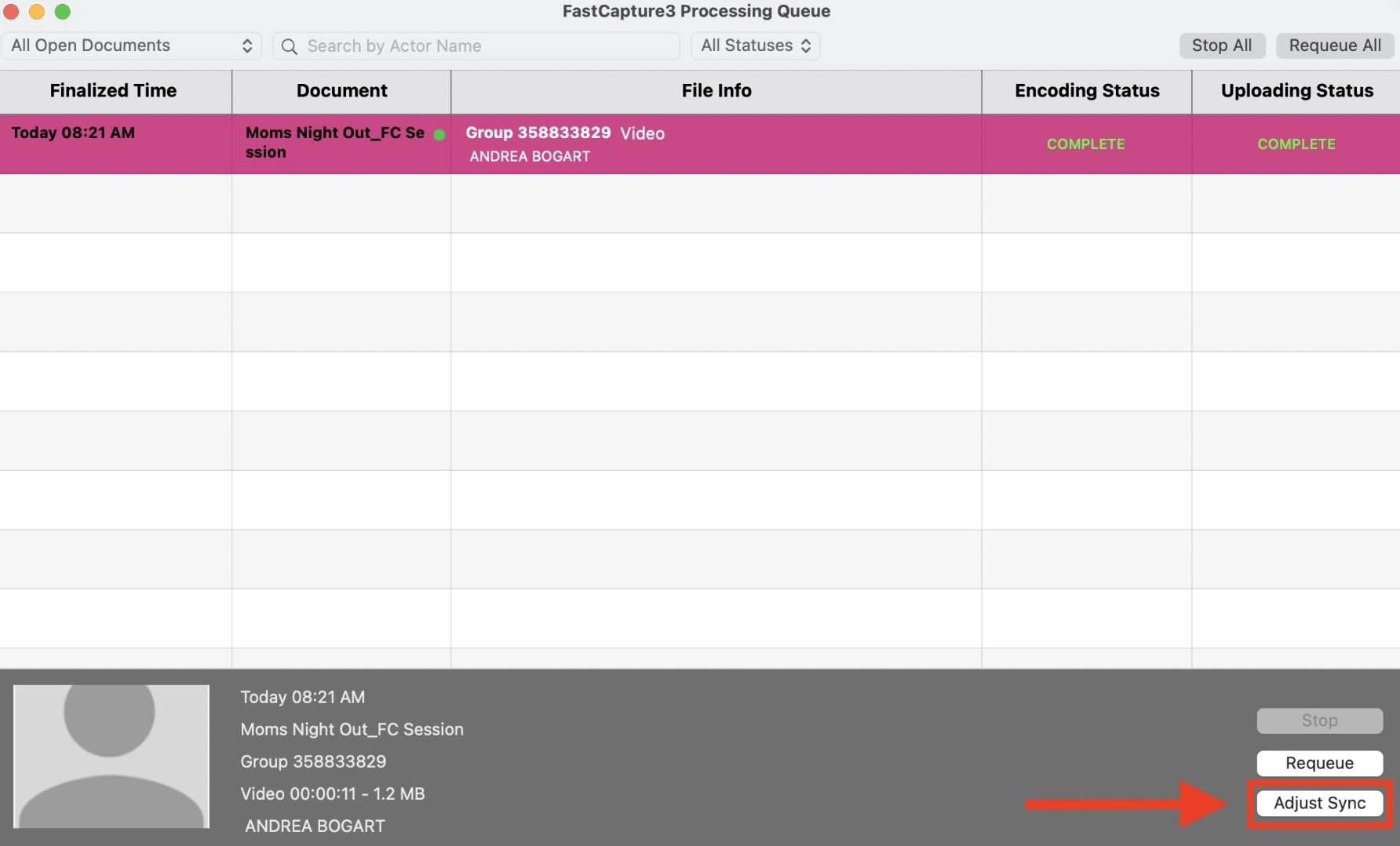
Once you click into the Queue page, a new window will open. Click on the audition video that needs to be edited; this will highlight the selected talent in blue. Once selected, the option to adjust sync will become available. Click the button on the bottom right corner labeled Adjust Sync.
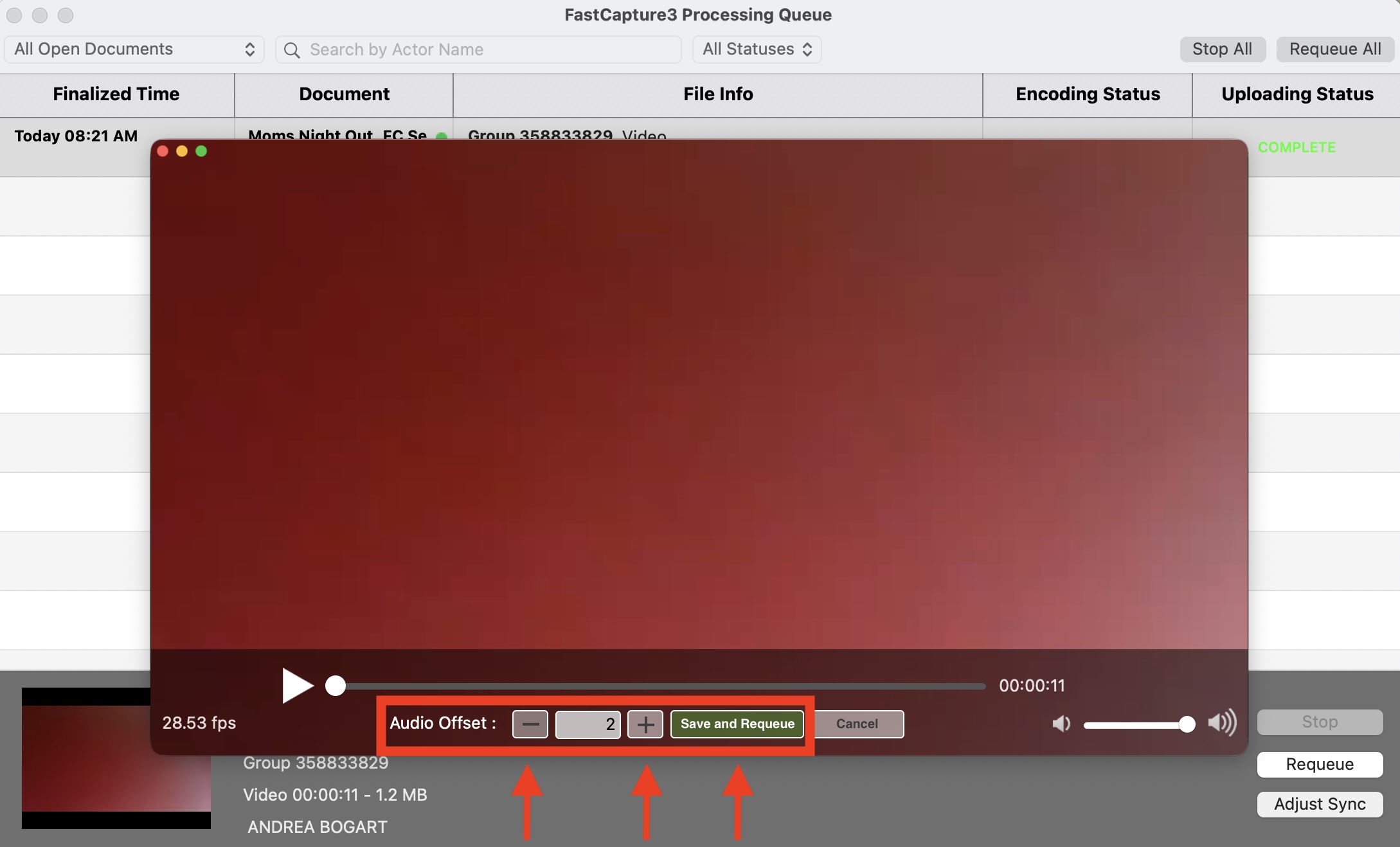
A new screen will appear with the raw video of the desired audition. Here you can adjust the audio sync via the Audio Offset "-" and "+" buttons located at the bottom of the window. Once you have set the audio to the desired time, hit the green button labeled Save and Requeue.
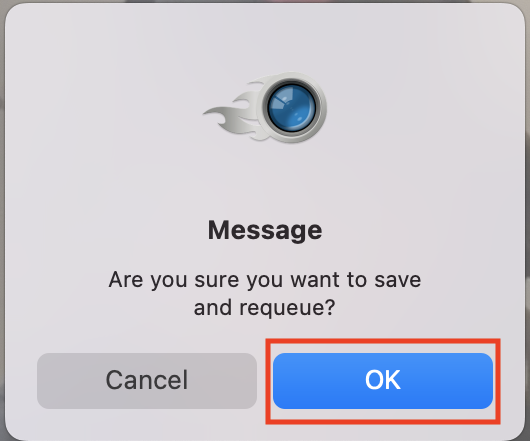
A final window will appear asking, "Are you sure you want to save and requeue?" Click the blue Ok button to proceed. Wait for the video to fully finish queueing in FastCapture, and your video will be uploaded and ready on Cast It Systems.